Integrating Figma MCP with Cursor
MCP
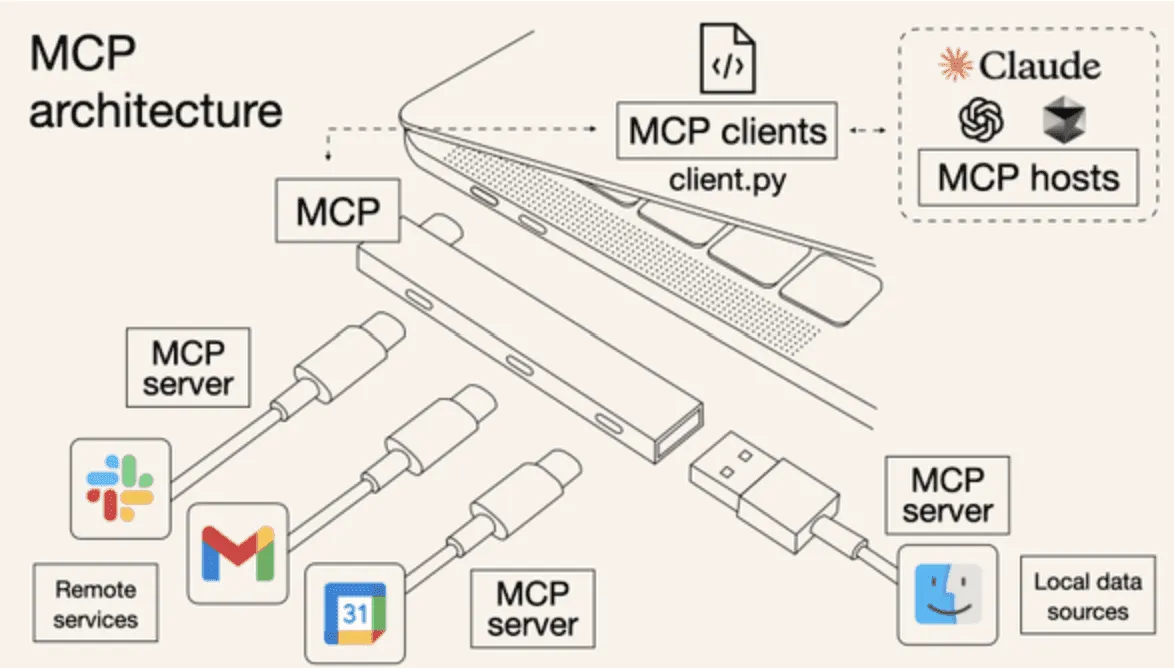
MCP (Model Context Protocol) is a protocol provided by Cursor that allows external services to provide additional context information to Cursor AI. Through Figma MCP, we can enable Cursor to directly read information from Figma design drafts, thereby achieving more accurate code conversion.
Environment Configuration
Starting the Figma MCP Server
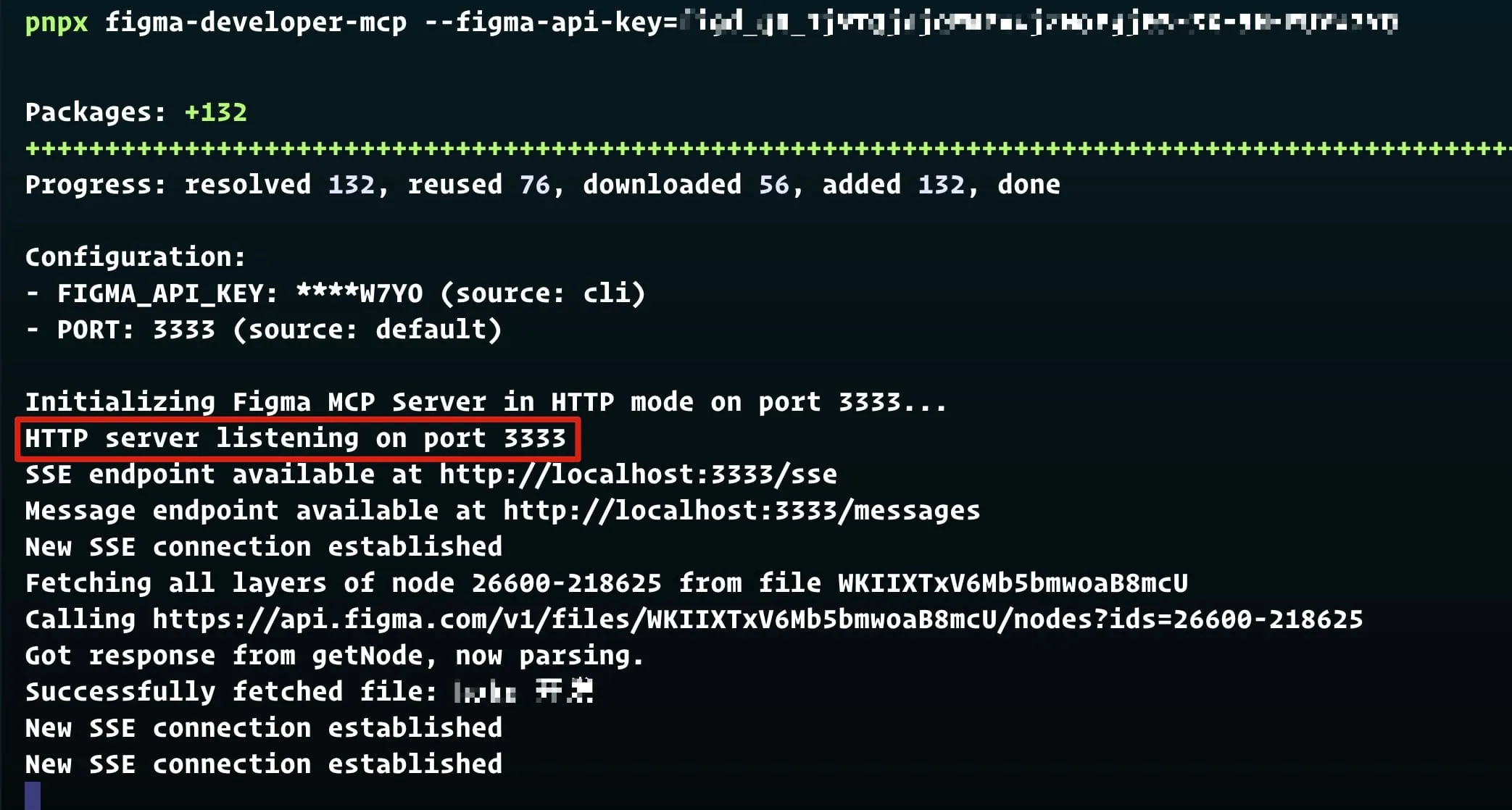
Obtain a figma-api-key in the Figma console (at least read-only permission is required). Copy the generated api-key and then execute the command in the terminal.
pnpx figma-developer-mcp --figma-api-key=<your-figma-api-key>After running, it will show that the Figma MCP Server has started on local port 3333.
Cursor MCP Configuration
Add the MCP configuration in Cursor settings (Cursor Version: 0.47.8).
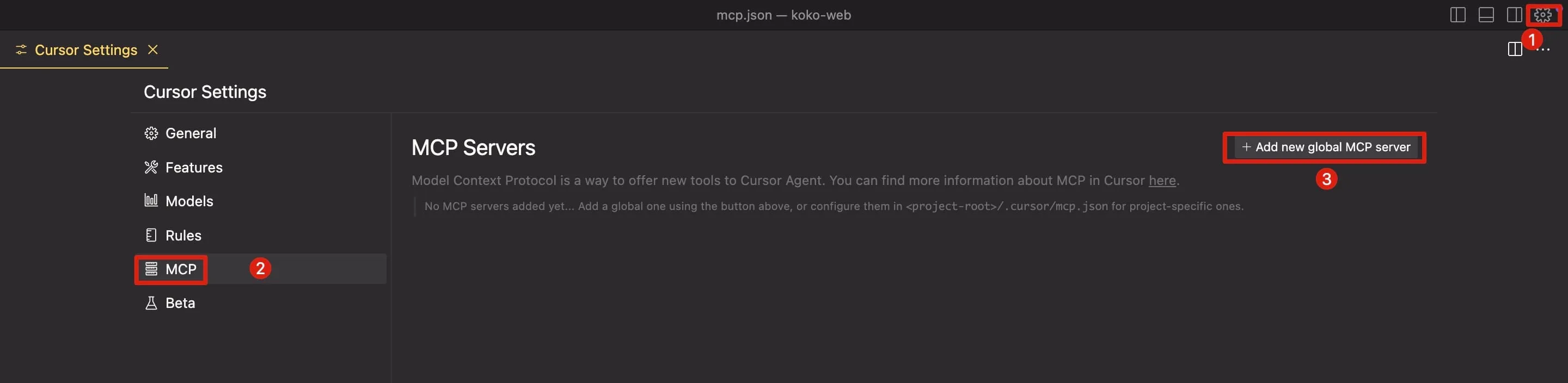
Set the Figma MCP Server address in mcp.json.
{
  "mcpServers": {
    "Figma": {
      "url": "http://localhost:3333/sse"
    }
  }
}
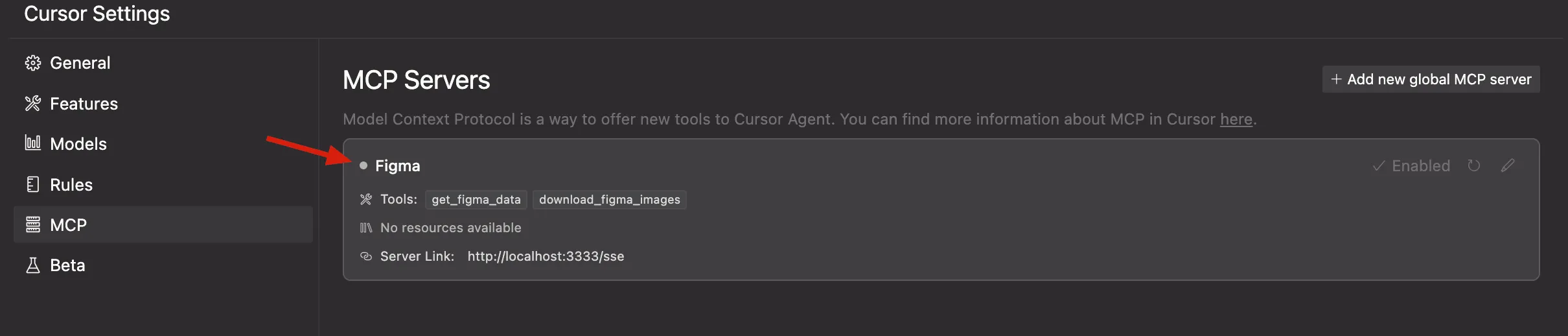
Seeing the green light indicates that the configuration is successful.
Using Figma MCP
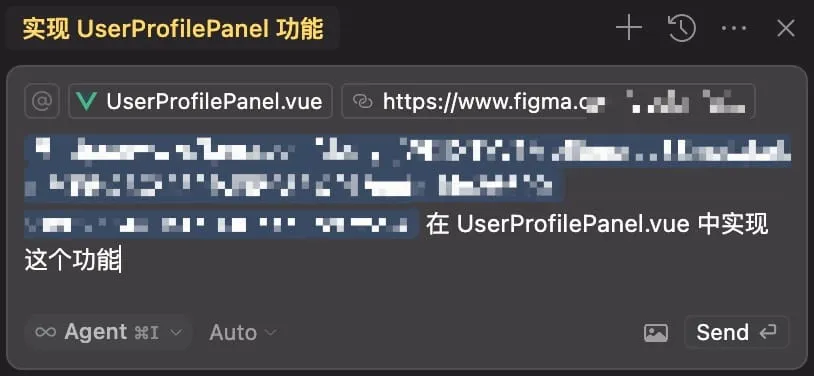
Figma MCP simply enhances Cursor’s capabilities, giving it the ability to interact with Figma design drafts. We just need to attach the design draft information when using Cursor. Cursor will automatically fetch the design information of the target element for better conversion.
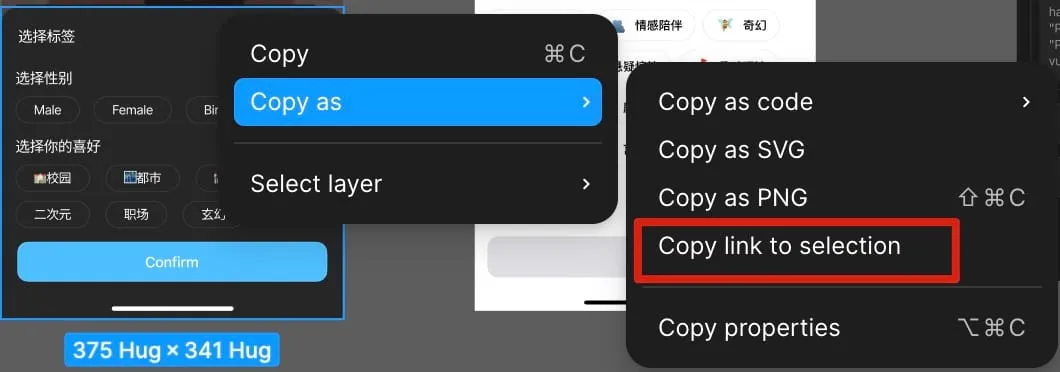
Attach the Figma Section URL in the Prompt and specify the file to write to (enable Agent mode).
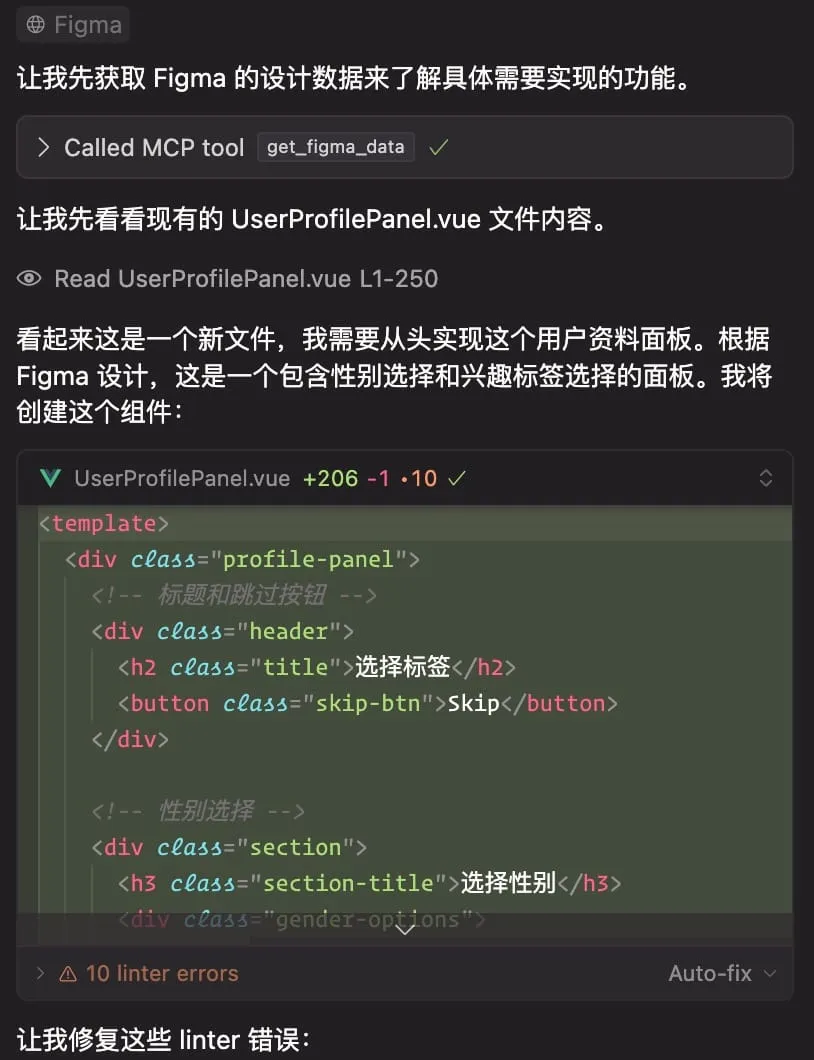
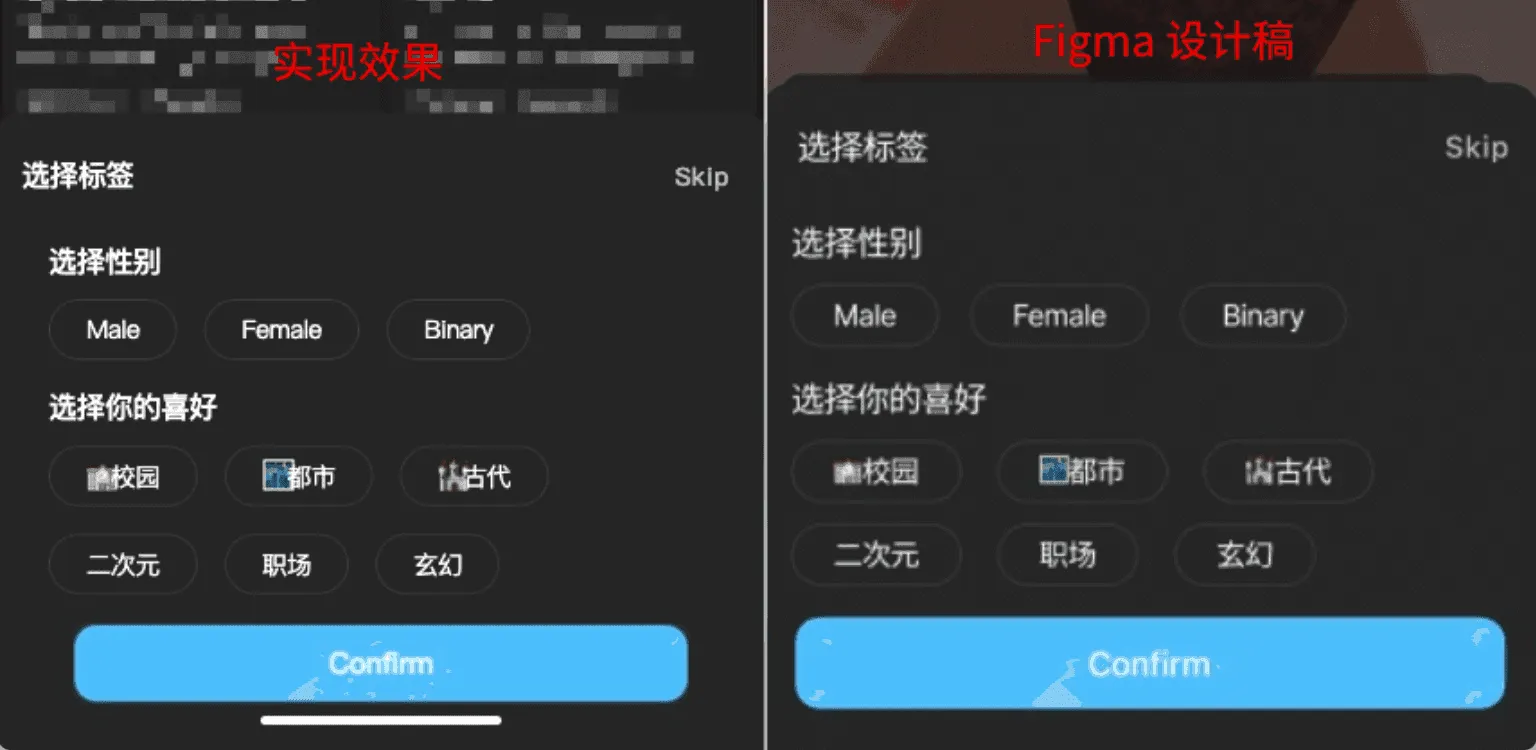
Conversion Result
Judging from the results, the conversion is better than uploading screenshots.
Notes
- The Figma file needs to have appropriate access permissions.
- The MCP server needs to remain running; otherwise, Cursor will not be able to fetch design information.
- The copied Figma Section URL must be a link to a specific element, not a link to the entire page.
- Currently, MCP mainly supports basic style information; complex interactive effects may require manual adjustment.
Conclusion
Figma MCP provides Cursor AI with the ability to directly obtain design draft information. Compared to the traditional method of uploading screenshots, it can:
- More accurately obtain style information such as colors, dimensions, and fonts.
- Reduce the workload of manual measurement and adjustment.
- Improve the efficiency and accuracy of code conversion.
This workflow is particularly suitable for frontend development teams and can significantly improve the efficiency of converting design drafts to code. However, when using it, pay attention to configuring the correct permissions and keeping the MCP server running stably.